First: Create a Family Tree
(You need to create an Ancestry Family Tree so you will always have access and control over the information that is found.)
1. Start by going to www.ancestry.com
2. Click on “Sign In“- It is free to create account and add your family tree. If you already have sign in information use it. Other wise click on “sign up for free” underneath the Green Sign In button.
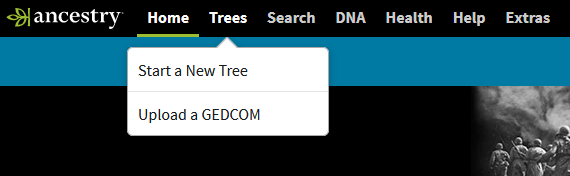
3. Go to “Trees” at the top of the page
4. Click on “Create & Manage Trees”- follow the instructions
Second: Share your Family Tree
- From any page on Ancestry, click the Trees tab and choose your tree.
- From your tree, click the tree name menu in the top-left corner and select Sharing

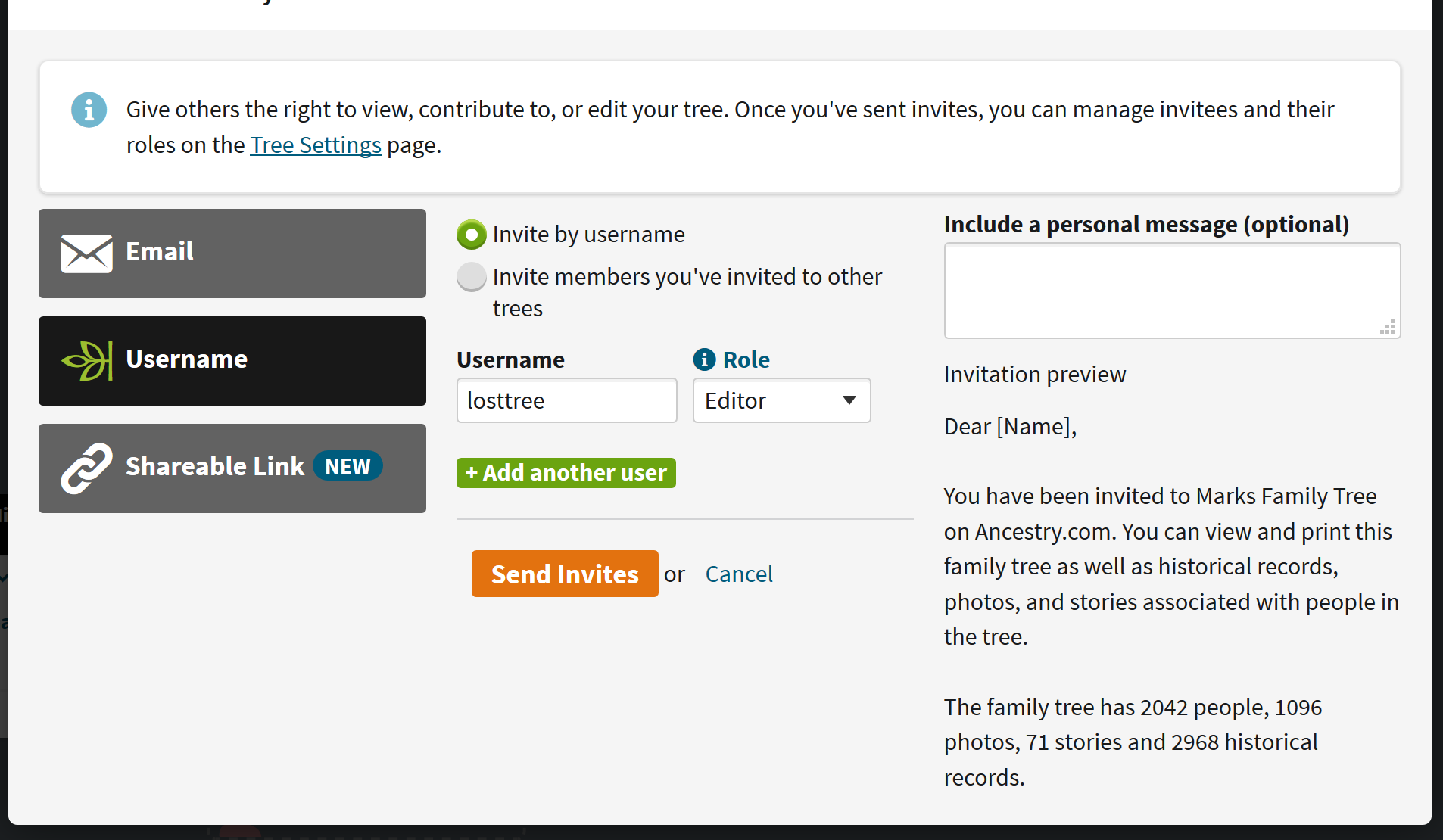
To enter our username, click Username; and enter the username “losttree“
- Change the invitee’s role to “Editor” and click Send Invitation.
Third: Share AncestryDNA Results:
- Sign in to your Ancestry account.
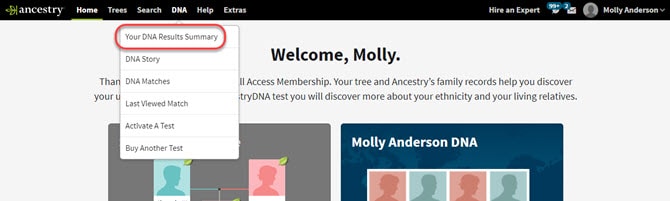
- From any page on Ancestry, click the DNA tab and select Your DNA Results Summary.
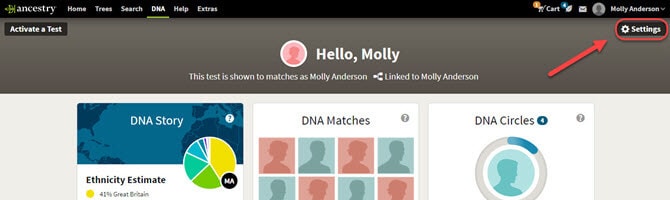
- From your DNA homepage, click the Settings button in the upper right-hand corner.
- Scroll down to the “Sharing Preferences” section.
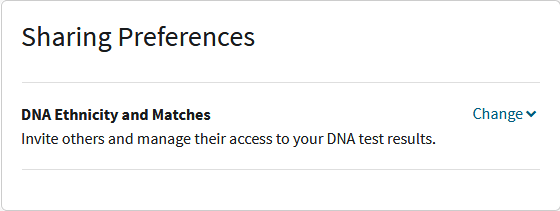
- .Click on “Change”
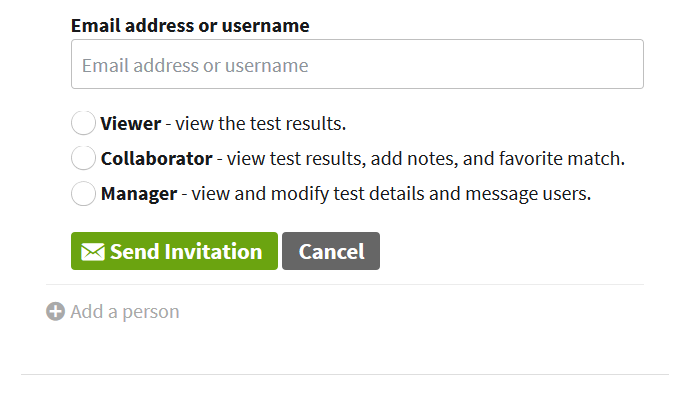
- Click on “Add a Person”
- In the field that appears, enter ” losttree”
- Click Viewer to “COLLABORATOR” change the invitee’s role and click Send Invitation.
- A viewer can view your full DNA results but will not be able to add or change anything.
- A collaborator can view your full DNA results, add notes, edit participant details, and link your test to a tree.
- A manager can invite others to access the results, assign and change account roles, permanently delete the results, download raw DNA data, and send and respond to messages in the test owner’s account. The owner of a test (the person whose DNA was tested) can invite one person at a time to manage their test. The owner may add or remove a manager at any time.
 You are now done.
- Click Viewer to “COLLABORATOR” change the invitee’s role and click Send Invitation.
 Lost Tree